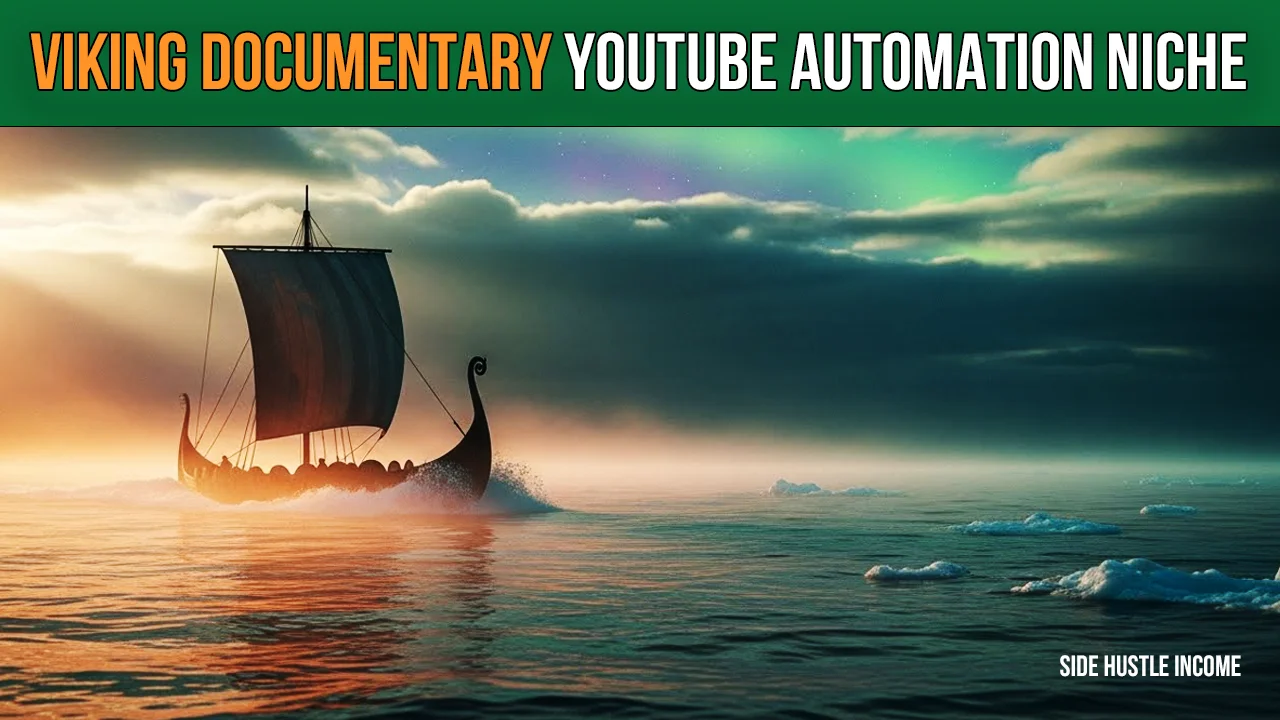
If you want to target a USA audience with documentary-style content, starting a Viking Documentary YouTube Automation channel can be a smart move.
Viking history has strong global interest, and the storytelling format works especially well in long videos where viewers stay longer and watch more.
In this step-by-step guide, we will follow a simple, practical process. We will learn;
- how to research a competitor
- pick a strong title
- write a 30-minute script in parts
- generate voiceover and visuals
- edit everything smoothly, and
- finally upload with proper YouTube SEO for the USA niche
Competitor Research: Study “Viking Chronicles” First
We need to look at what a successful competitor is doing.
From the script, the competitor is:
- Channel name: Viking Chronicles
- Videos uploaded: 52
- Subscribers: 11.6k
- Channel age: about 1–1.5 months
- Total views: 700K
- Video length: 27–39 minutes (around 30 minutes average)
- Upload rate: 4 videos per week
- Thumbnails: simple, clean, eye-catching
- Growth: strong weekly views
Channel Data as on 15 December,2025
What we learn:
- Long-form documentary content is working.
- Simple thumbnails + strong titles = clicks.
- Consistency drives growth.
Fix Your Content Format for Viking Documentary YouTube Automation
We need to lock a clear format before production.
Recommended format (based on the script):
- Video length: 30 minutes
- Upload frequency: 4 videos/week
- Voice style: calm and deep documentary narration
- Structure: story-based scenes (around 8 seconds each)
Generate Titles (ChatGPT Prompt Method)
We need a title that feels like a documentary and gets a high CTR.
Process:
- We paste the title prompt in ChatGPT.
- We get 5 title ideas.
- We select the best title.
Examples from the script:
- How Vikings Survived the Long Dark Winter Without Modern Help
- The Secret Behind Viking Winter Survival in Extreme Cold
- How Ancient Vikings Stored Food and Endured Frozen Seasons
We should pick a title that:
- is clear
- creates curiosity
- uses strong keywords like “Vikings,” “winter,” “survival”
Script Writing: Create a 30-Minute Documentary in Parts
We won’t get a full 30-minute script in one go.
We need to generate it in parts.
Process:
- We paste the script prompt.
- We add our selected title where it says “Insert Title.”
- ChatGPT generates the script in parts (Part 1, Part 2, Part 3).
Then we copy each part and use it in the next step.
Voiceover: Use a Calm, Deep Voice
Documentaries need a deep and calm voice.
Process (as shown in the script):
- We open a VO tool (example mentioned: MicMaster).
- We select a deep, calm voice.
- We generate Part 1.
- We generate Part 2.
- We generate Part 3.
Now our voiceover is ready.
Visuals: Convert the Script into Scene Prompts (VEO3 Prompts)
Now we need visuals.
Process:
- We copy the “Video Prompt.”
- We paste the full script where it says “Insert Script.”
- ChatGPT creates scene-by-scene prompts.
From the script:
- 1 scene = about 8 seconds
- 30 minutes = around 180–200 scenes (approx)
We keep typing “Continue” to generate the next batch of scenes until everything is complete.
Text-to-Video Generation: Use the Right Settings
We paste each scene prompt into a text-to-video tool (the script mentions using Flow).
Recommended settings:
- Format: Landscape 16:9
- Model: VEO3
- Fast mode = cheaper (uses fewer credits)
- Quality mode = best output (uses more credits)
Important:
Sometimes the tool adds dialogue/voice automatically.
We need to remove the “script line” from the prompt and keep it no dialogue.
Then we:
- generate the scene
- download it
- rename it (01, 02, 03… or Scene 1, Scene 2…)
Edit in Filmora: Simple Workflow
Editing should stay simple and efficient.
Steps:
- We open Filmora.
- We import all scene clips.
- We import the voiceover audio.
- We place the voiceover first on the timeline.
- We match clips scene-by-scene with the voiceover.
Tip:
Each scene prompt includes a script line.
We listen to the VO and place the correct scene for that line.
Fix the Sound: Smooth Documentary Feel
We don’t want harsh audio jumps.
We do this:
- set each clip volume to around -10
- apply Fade In + Fade Out (2–5 seconds)
This makes transitions smooth.
Add Background Music
We need calm documentary-style music.
Process:
- We download a track from a free music site (the script suggests searching “calm” or “documentary”).
- We keep the music low (around -10 to -15).
- We add a fade out at the end.
Goal:
- music supports the mood
- voice stays clear
Thumbnail Prompts: Create Clickable Options
We need thumbnails similar to the competitor’s style.
Process:
- We copy the thumbnail prompt.
- We paste it into ChatGPT.
- We add our final title.
- We get 4–5 thumbnail prompts.
- We generate thumbnails and pick the best one.
Keep it simple but highly clickable.
YouTube SEO Pack: Title, Description, Hashtags, Tags
Now we prepare SEO for upload.
Process:
- We paste the SEO prompt in ChatGPT.
- We add our final title.
- ChatGPT generates:
- high CTR title options
- description with hashtags
- tags list
Tag tip:
Paste tags with commas into the YouTube tags section.
Quick Checklist (We Need to Follow This)
- We need to study the competitor.
- We need to follow a 30-minute documentary format.
- We need to generate and finalize the title.
- We need to write the script in parts.
- We need to generate a deep, calm voiceover.
- We need to create 180–200 scene prompts.
- We need to generate, download, and rename scenes.
- We need to sync scenes with the voiceover in Filmora.
- We need to lower clip audio and add fade in/out.
- We need to add low background music.
- We need to test 4–5 thumbnail options.
- We need to apply SEO (title, description, hashtags, tags)

Disclaimer
We’re not promising lottery winnings on Side Hustle Income. Your results will depend on how much time you put in. But here’s what we CAN promise – these are 100% free, legal ways to make real money from your couch. No funny business.
